How I Customized the Chirpy Theme
An explanation of how I created some custom tags for my blog.
So I recently made this display:
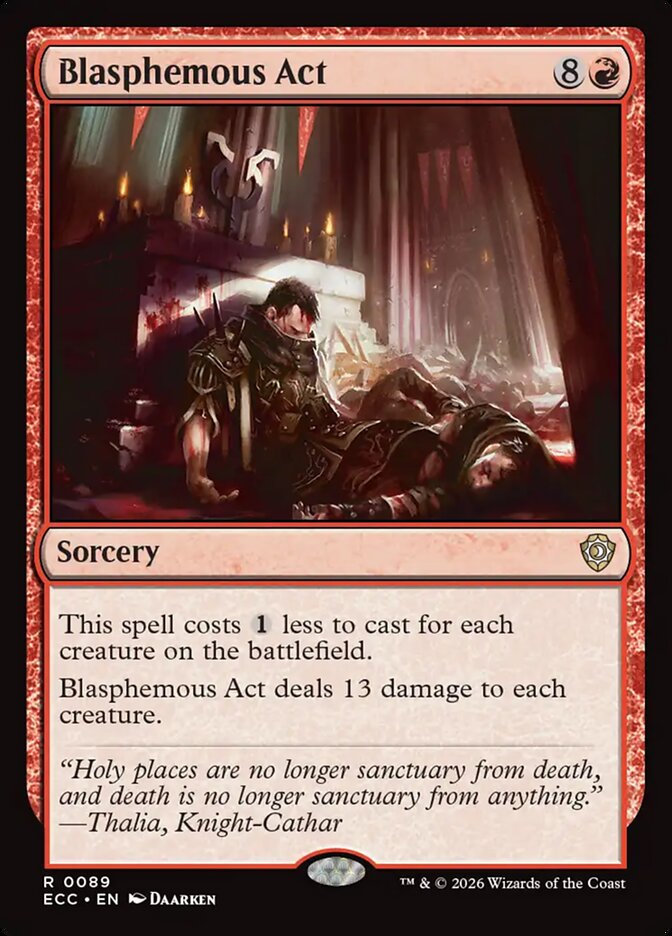

for my Commander without Color Identities post. It uses a custom Jekyll tag called {% cards %}.
CardFetcher
Let’s first talk about how I am getting all the images and things, I am getting them from the Scryfall API. The documentation is pretty self-explanatory so I won’t get into it. When I first implemented these new tags I fetched each card separately, which as you might expect, took a while and sometimes I would get rate-limited by Scryfall. Which makes sense if I was making a lot of calls in a very short period of time (which I sometimes was). To solve this issue, I implemented a CardFetcher, it fetches a card if it hasn’t yet and adds it to a cache.
1
2
3
4
5
6
7
8
9
10
11
12
13
14
15
16
17
18
19
20
21
22
23
24
25
26
27
28
29
30
31
32
33
34
35
36
37
38
39
40
41
42
43
CARD_CACHE_PATH = ".cache/cards.json"

class CardCache
  # Load all cards
  def self.load
    return {} unless File.exist?(CARD_CACHE_PATH)
    JSON.parse(File.read(CARD_CACHE_PATH))
  end

  # Save all cards
  def self.save(data)
    FileUtils.mkdir_p(File.dirname(CARD_CACHE_PATH))
    File.write(CARD_CACHE_PATH, JSON.pretty_generate(data))
  end

  # Fetch a new card
  def self.fetch(card_name)
    cache = load
    key = card_name.downcase

    return cache[key] if cache[key]

    # Create uri
    uri = URI("https://api.scryfall.com/cards/named?exact=#{URI.encode_www_form_component(card_name)}")
    res = Net::HTTP.get_response(uri)

    raise "Card not found: #{card_name}" unless res.is_a?(Net::HTTPSuccess)

    # Get JSON of response
    json = JSON.parse(res.body)

    # Update cache
    cache[key] = {
      "name" => json["name"],
      "scryfall_uri" => json["scryfall_uri"],
      "image_normal" => json.dig("image_uris", "normal"),
      "image_large"  => json.dig("image_uris", "large")
    }

    save(cache)
    cache[key]
  end
end
With this I was able to cut my generation times from 30 seconds that would sometimes fail to less that 3 that always works. I can then use this for all the tags I want to create to allow for easier use of Magic cards.
CardsTag
Example
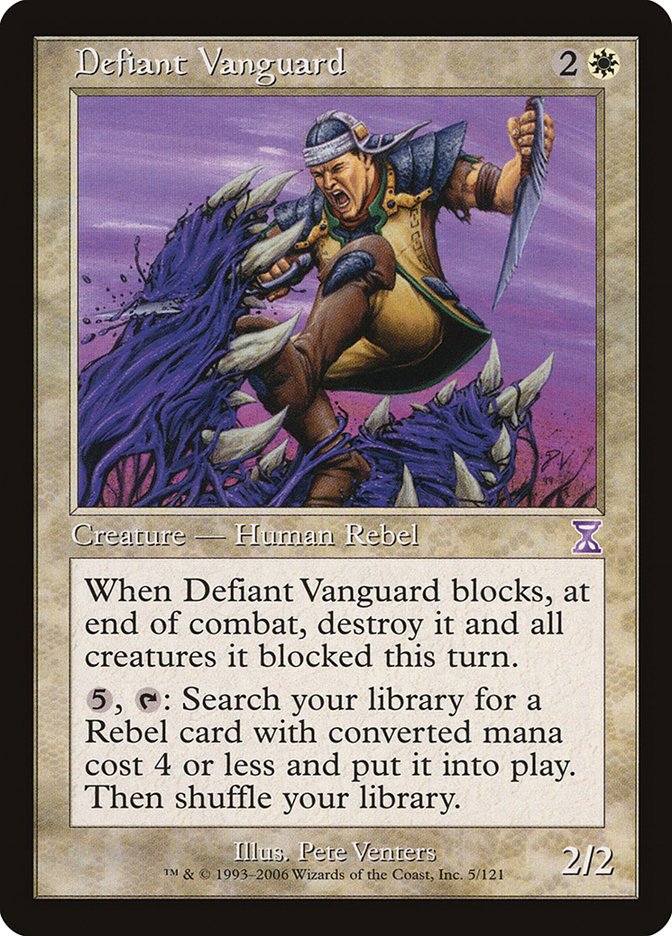
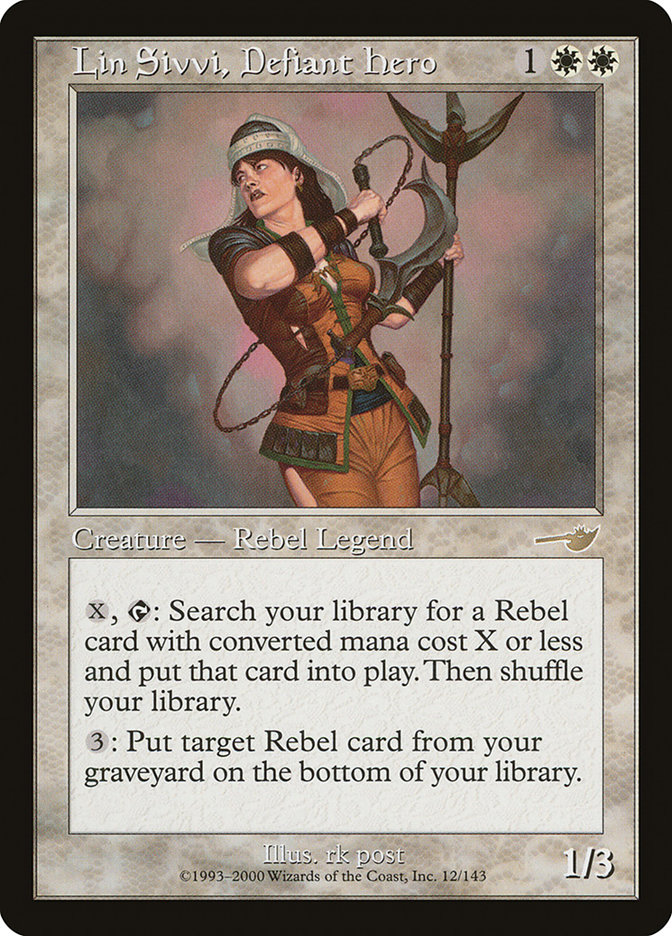
The first thing I added was the {% cards %} tag. It is a good replacement for what I used to do:
1
2
3
4
5
6
7
8
9
10
<div style="width: 100%;display:flex">
  <img src="https://cards.scryfall.io/large/front/a/3/a37acadc-0e58-4f44-93f4-dd465b9ee06f.jpg?1562781502"
  style="border-radius:5%" alt="Deviant Vanguard">

  <img src="https://cards.scryfall.io/large/front/e/5/e574e522-2632-4cd4-8545-c582ac3b641f.jpg?1562632572"
  style="border-radius:5%" alt="Lin Sivvi, Defiant Hero">

  <img src="https://cards.scryfall.io/large/front/1/7/17ab3455-f464-41b0-ac63-d40d27abbfb1.jpg?1619395094"
  style="border-radius:5%" alt="Blightspeaker">
</div>
Becomes instead simply:
1
2
3
4
5
{% cards %}
![Defiant Vanguard]
![Lin Sivvi, Defiant Hero]
![Blightspeaker]
{% endcards %}
Which makes it a lot easier for me to incorporate them in my posts and talk about them. Also changing a card becomes as easy as just changing the name instead of changing the link and the alt. And adding new ones is just as easy, under the hood the tag just boils down to the same <div>:
1
<div class='cards-container'><img src='https://cards.scryfall.io/large/front/a/3/a37acadc-0e58-4f44-93f4-dd465b9ee06f.jpg?1562781502' alt="Defiant Vanguard" class='card-img' loading='lazy'><img src='https://cards.scryfall.io/large/front/e/5/e574e522-2632-4cd4-8545-c582ac3b641f.jpg?1562632572' alt="Lin Sivvi, Defiant Hero" class='card-img' loading='lazy'><img src='https://cards.scryfall.io/large/front/1/7/17ab3455-f464-41b0-ac63-d40d27abbfb1.jpg?1619395094' alt="Blightspeaker" class='card-img' loading='lazy'></div>
Code
The code for it is pretty simple, just a simple Tag block that gets all card names and then fetches them:
1
2
3
4
5
6
7
8
9
10
11
12
13
14
15
16
17
18
19
20
21
module Jekyll
  class CardsBlock < Liquid::Block
    def render(context)
      content = ""

      cards = super.strip.split('!').drop(1)

      cards.each do |card|
        name = card.match(/\[(.*)\]/).captures.first
        data = CardCache.fetch(name)

        content += "<img src='#{data["image_large"]}' alt=\"#{name}\" class='card-img' loading='lazy'>"
      end

      "<div class='cards-container'>" + content + "</div>"
    end
  end
end

# Register it
Liquid::Template.register_tag('cards', Jekyll::CardsBlock)
Style
Now what I could do to make all this prettier is add some CSS, so I did. I modified jekyll-theme-chirpy.scss and added all kinds of stuff to the cards-container class until I was satisfied. And that has led to the iteration you see now:
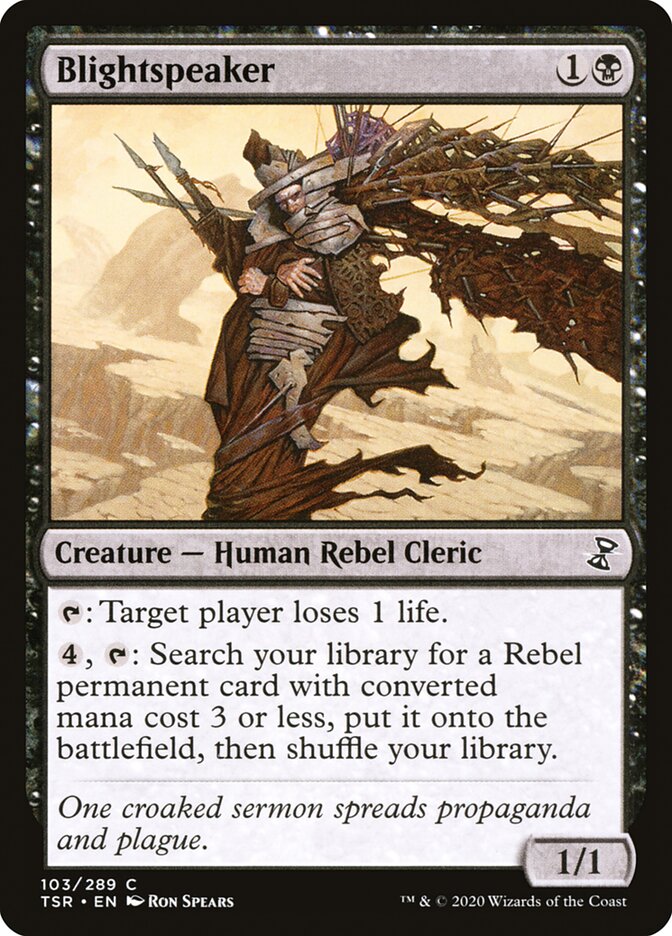
However I assume this is all how it is now and will probably be changed in the future in many ways. Who knows in what ways it will change? If you want to figure out then you can look at the GitHub repository for this website and see what changes I’ve made.
CardTag
Example
The {% card %} tag is much more interesting that the {% cards %} tag. First of all, the thing I used to do was just add a link: [**Dynaheir, Invoker Adept**](https://scryfall.com/card/clb/273/dynaheir-invoker-adept). But now I have a lot more control over what happens by just doing this: {% card Dynaheir, Invoker Adept %}. Which is, again, a lot easier to use as it just requires a name and not a name and link and it is quite a bit shorter because of that.
Code
The code for the plugin was a lot simpler than for {% cards %}, it is just fetching according to the card name:
1
2
3
4
5
6
7
8
9
10
11
12
13
14
15
16
17
18
19
module Jekyll
  class CardTag < Liquid::Tag
    def initialize(tag_name, text, tokens)
      super
      @card_name = text
    end

    def render(context)
      card = CardCache.fetch(@card_name.strip)

      "<a class='card-link' href='#{card["scryfall_uri"]}'>" \
        "#{card["name"]}" \
        "<img src='#{card["image_normal"]}' class='card-img' alt=\"#{card["name"]}\">" \
      "</a>"
    end
  end
end

Liquid::Template.register_tag('card', Jekyll::CardTag)
Now you might be wondering what the <img> is doing there. Well, it is allowing for this: Counterspell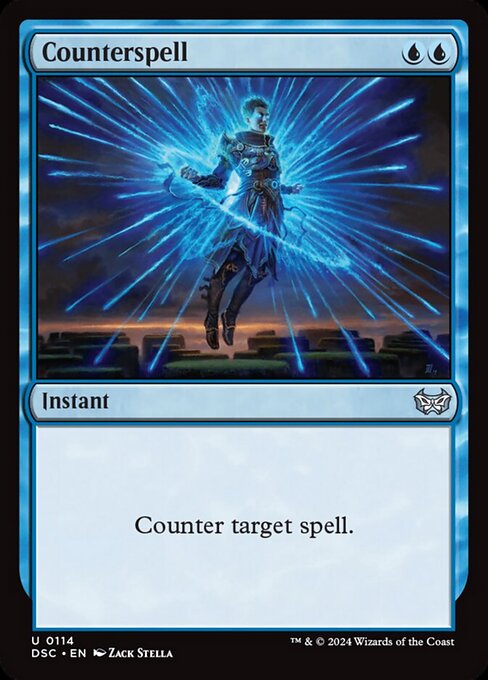 . Yes, an image of the card that follows your cursor as you hover over it, to get this done there was a lot of modifying styles to do. How I make it follow the mouse is just including a html file called
 card-previews.html, which is an HTML file with one line:
1
<script src="../../assets/js/card_previews.js"></script>
And that script simply updates each absolute position of each image to that of the mouse. To get this to work I had to do quite a bit of work on styling.
Style
First of all, when I first added this, it added all the images inline to the text and it showed them all the time, both of which were not intended. To fix this I added some CSS.
1
2
3
4
5
6
7
8
9
10
11
12
13
14
15
16
17
18
.card-link {
  position: relative;
  display: inline-block;
}

.card-link img {
  border-radius: 5%;
  position: absolute;
  pointer-events: none;
  display: none;
  transition: none;
  min-width: 200px;
  z-index: 999;
}

.card-link:hover img {
  display: block;
}
To show the image when it was hovered, however the default implementations of the Chirpy theme modified images to add links and it was quite a change. After a while I figured out that it was this piece of code in refactor-content.html:
1
2
3
4
5
6
<!-- add class to exist <a> tag -->
{% assign _size = _img_content | size | minus: 1 %}
{% capture _class %}
  class="img-link{% unless _lqip %} shimmer{% endunless %}"
{% endcapture %}
{% assign _img_content = _img_content | slice: 0, _size | append: _class | append: '>' %}
So I simply wrapped this in a {% unless %} condition to not add these unnecessary classes and all that fixed it! Note: now this is a very short article but it took me multiple days to figure all of this out.
SymbolTag
I just wanted some way to add a symbol in text, , so I added it. This code is a lot simpler:
1
2
3
4
5
6
7
8
9
10
class SymbolTag < Liquid::Tag
  def initialize(tag_name, text, tokens)
    super
    @symbol = text.strip
  end

  def render(context)
    SYMBOLS[@symbol.to_sym]
  end
end
And SYMBOLS is an array that has the SVG for the five colors allowing me to use them like {% symbol white %}
Conclusion
This was quite a fun project to work on and it will help me a lot with future posts about Magic: the Gathering. Ruby is also a very interesting language and I hadn’t had a chance to look at it much so this was also great. Thanks for reading as always!